Mobile app instructions are below:
(Note: these instructions are for Apple based mobile devices)
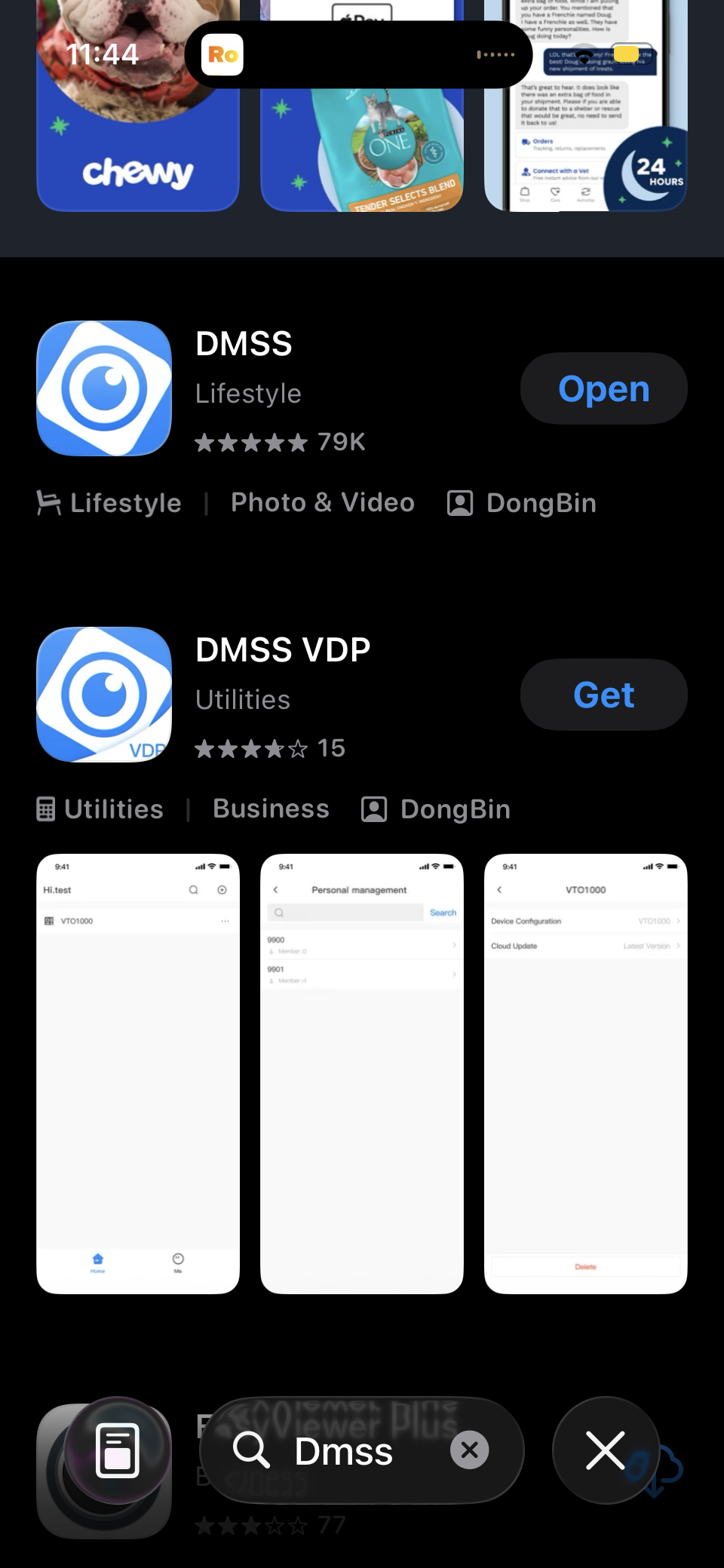
1 - Down the app: For Android use GDMSS PLUS or Apple use DMSS. Click "open" when download is complete
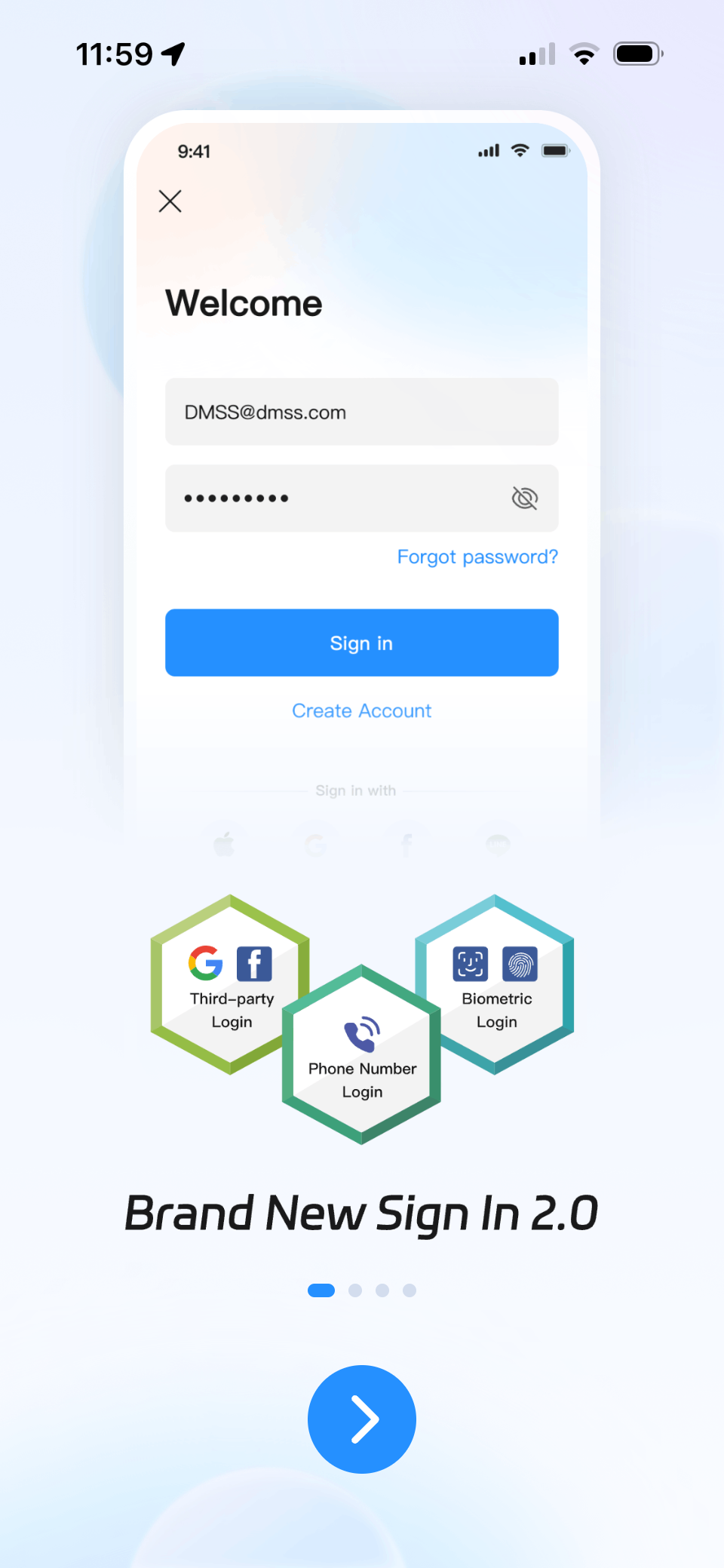
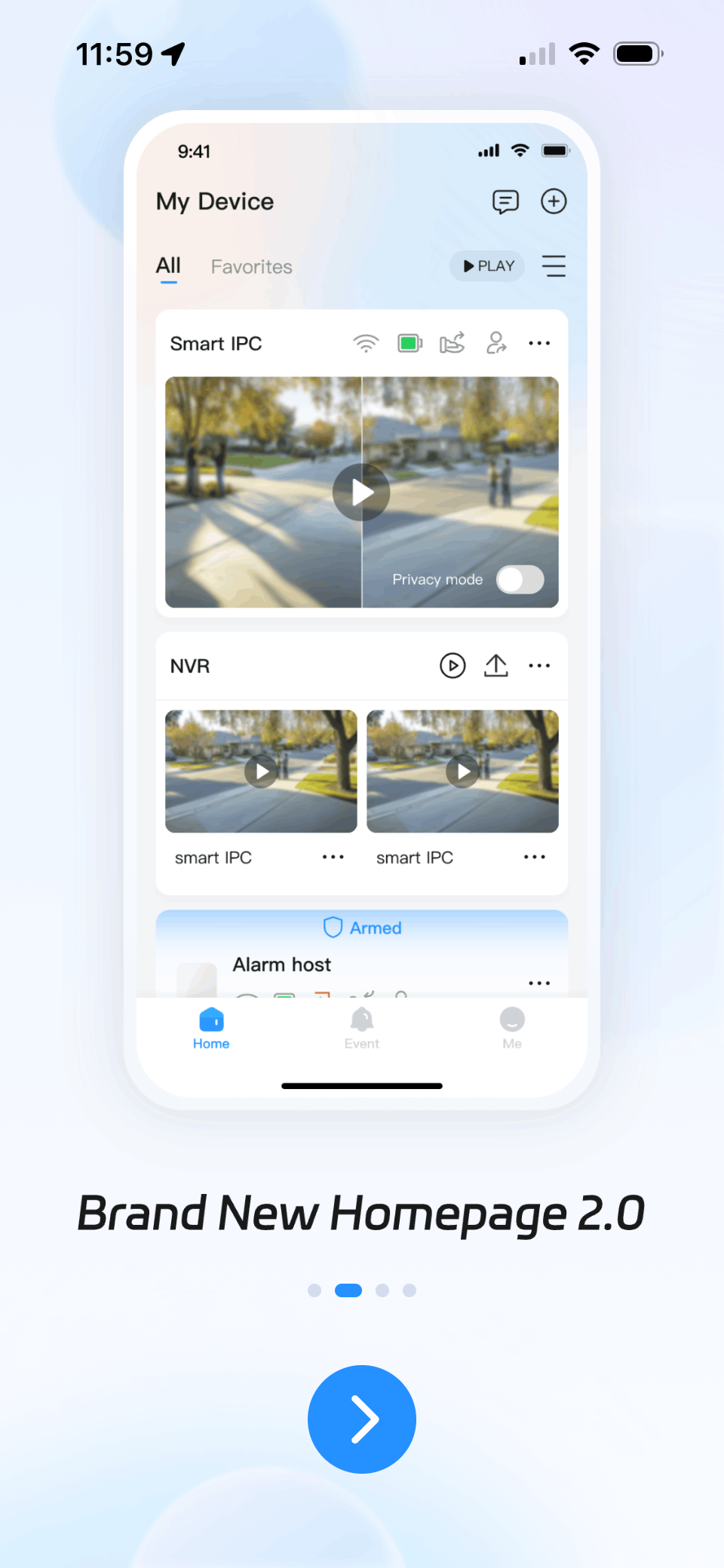
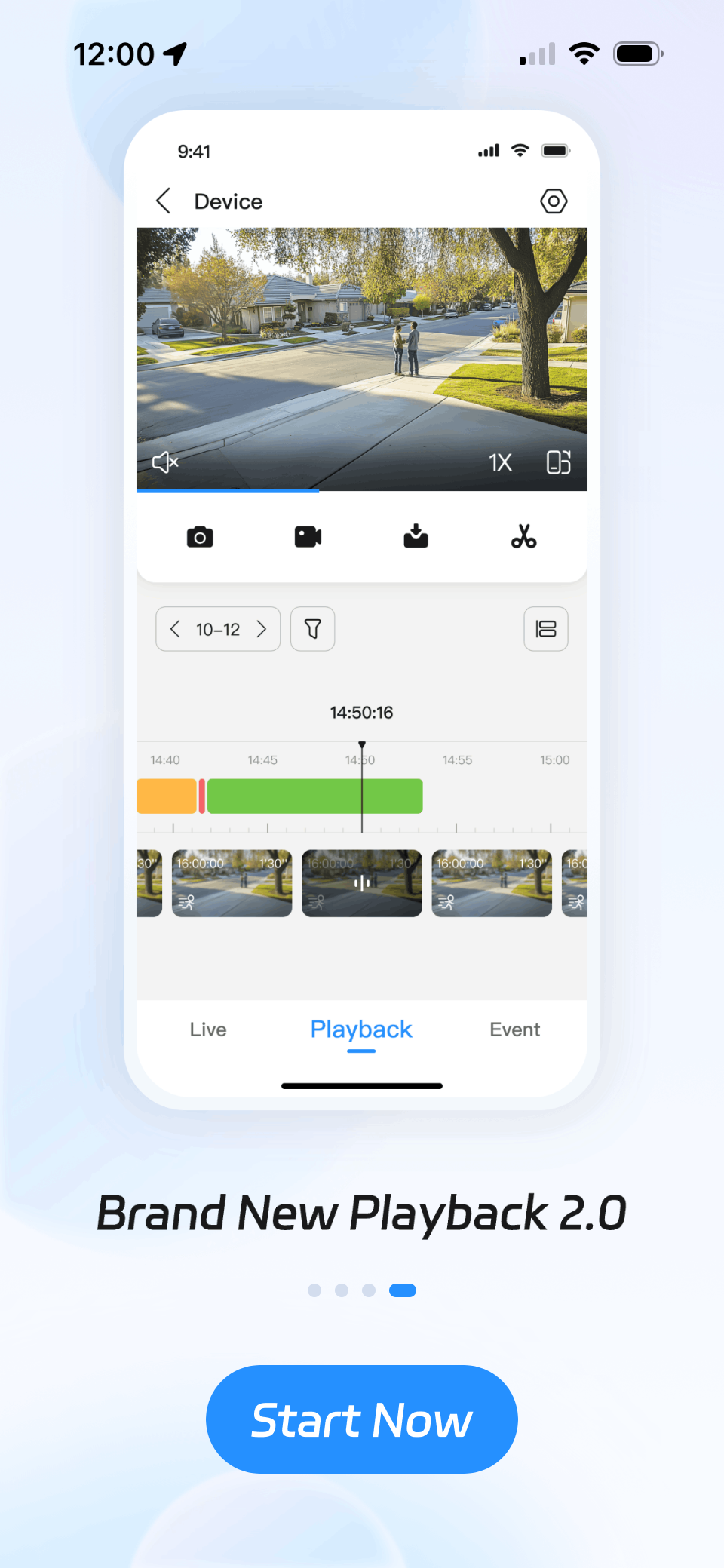
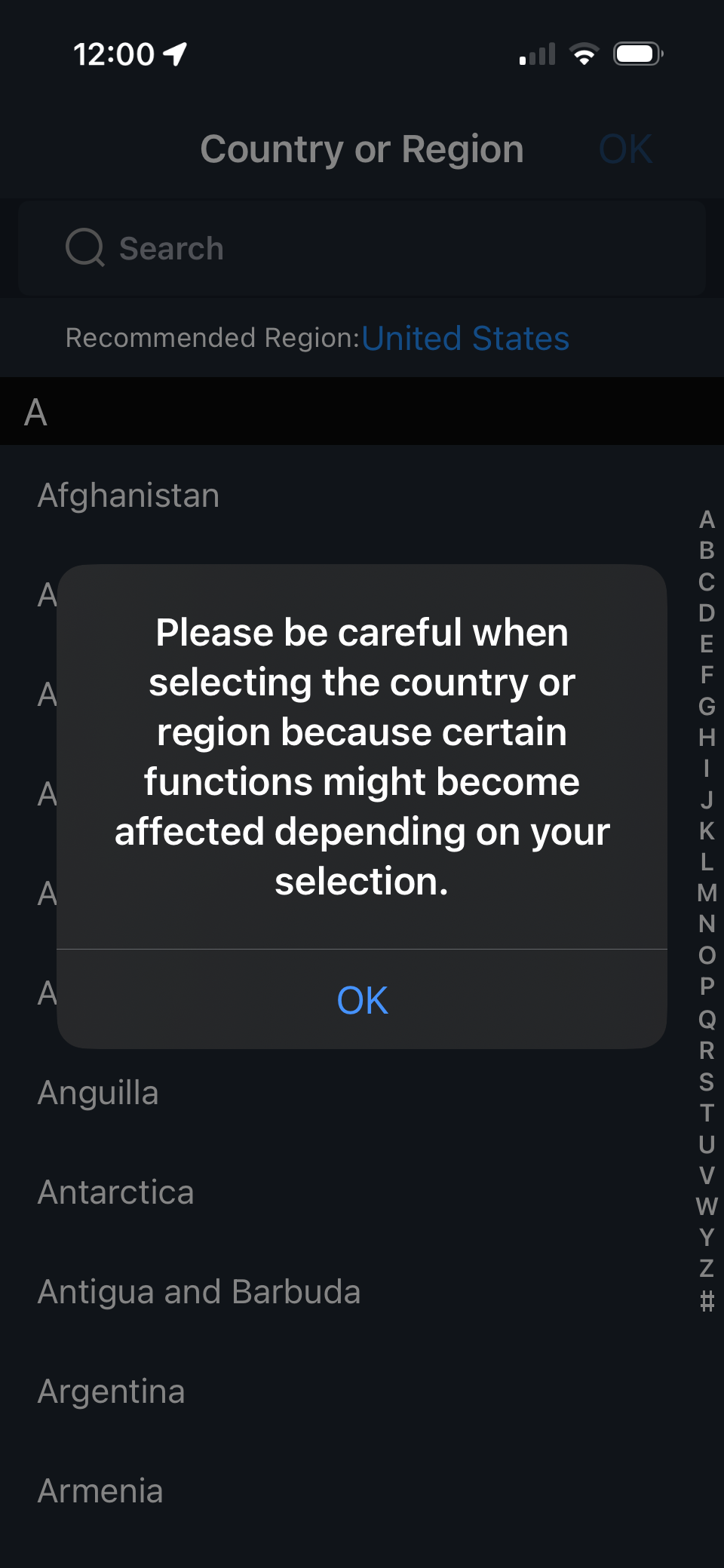
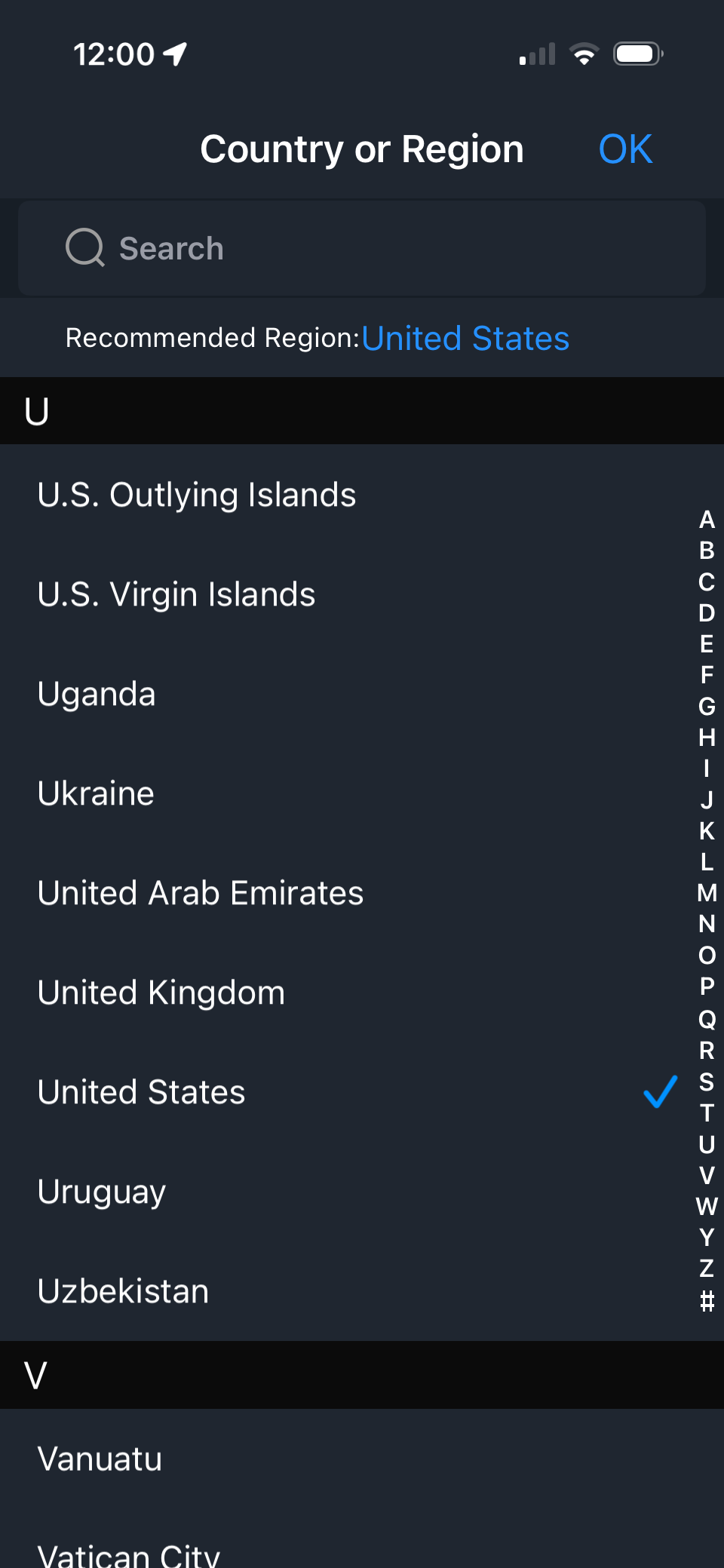
2 - The app will bring you through some introduction screens and then ask you to choose your country.
 |  |  |
 |  |
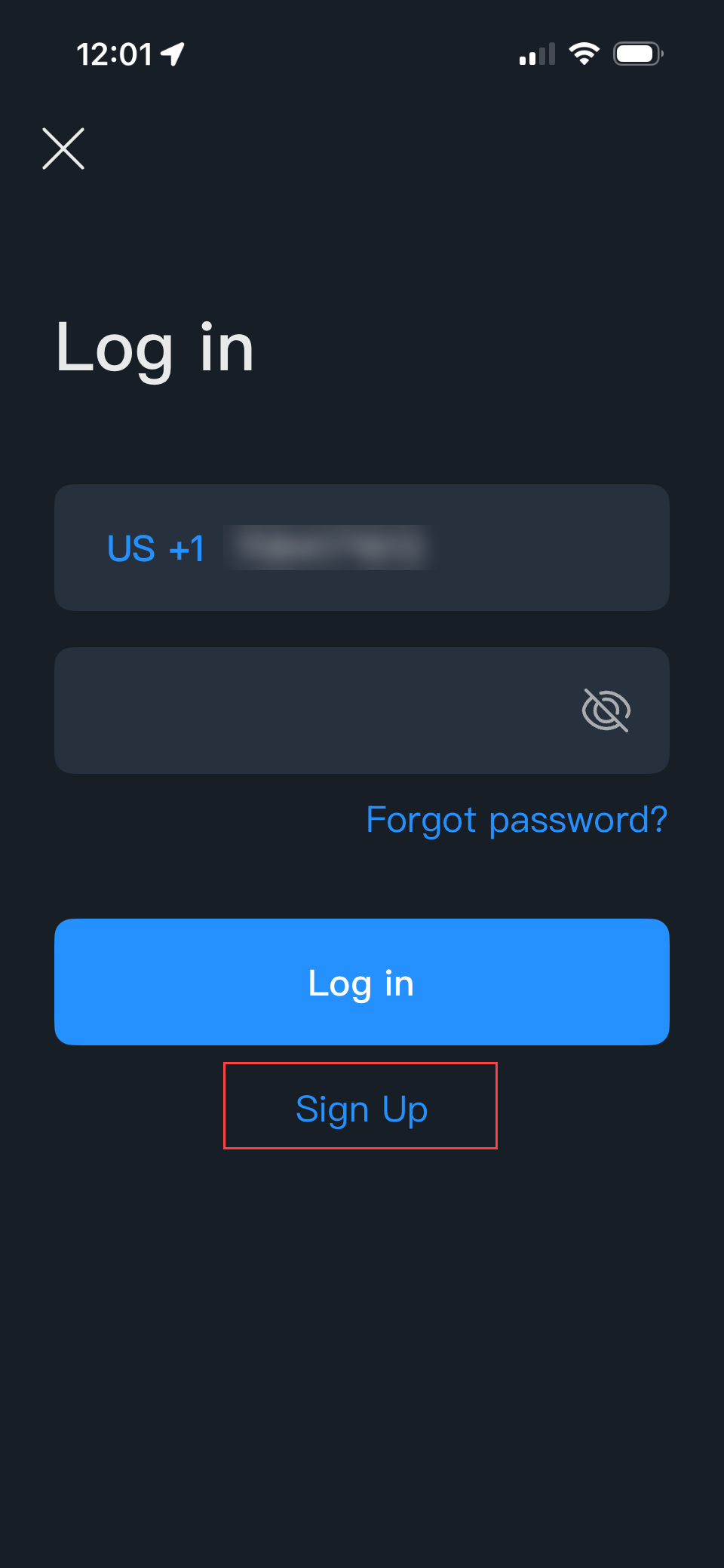
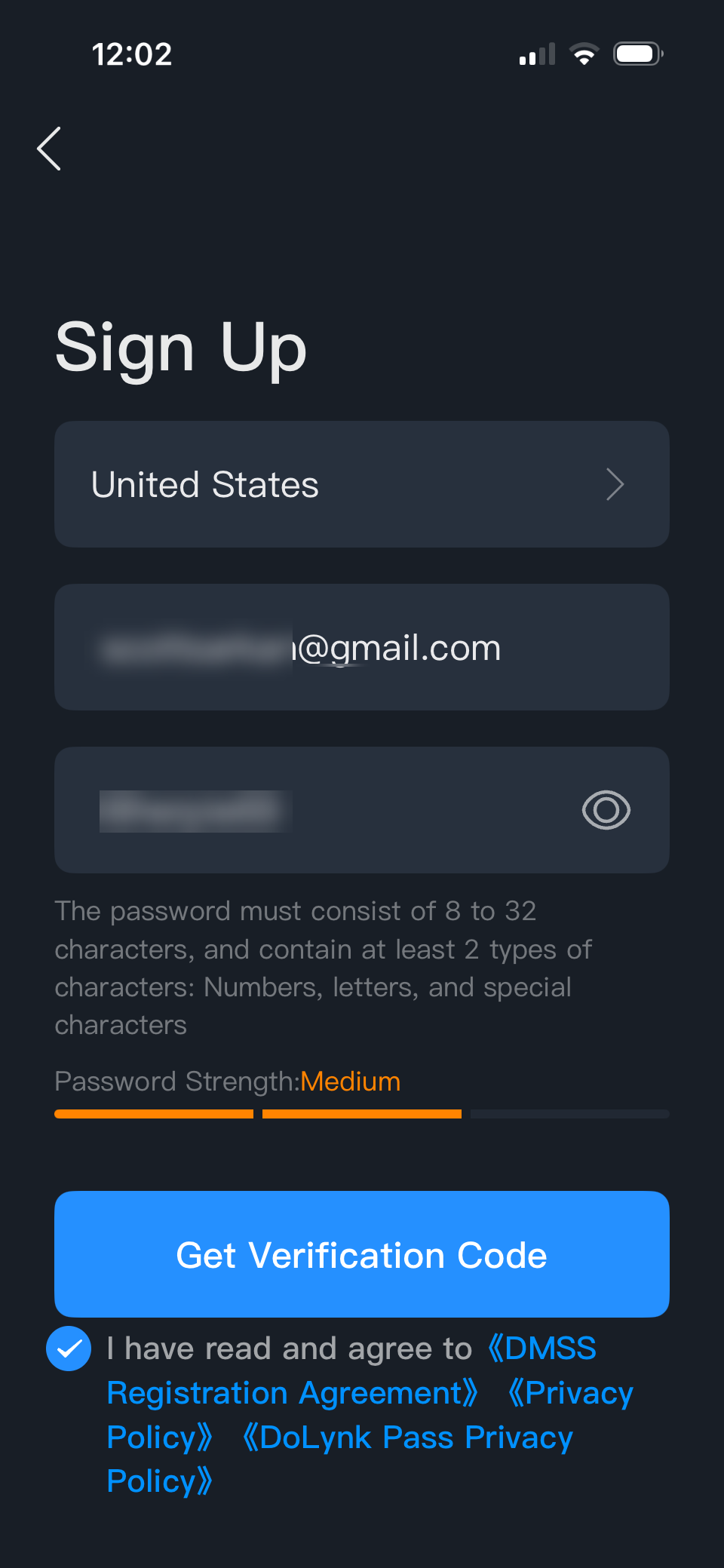
3 - Click Sign Up and enter in your information, then Get Verification Code. Go to your email and enter in your verification code.
 |  |
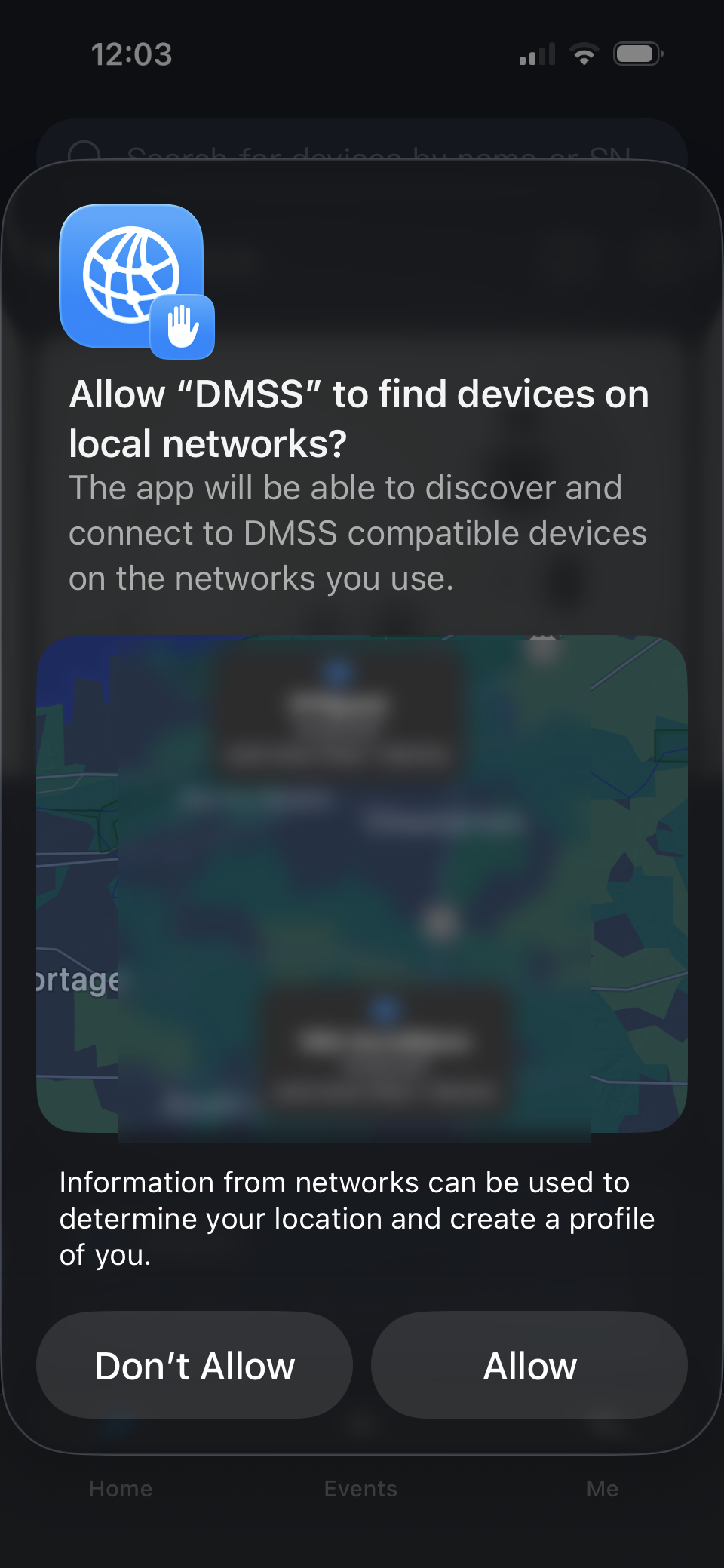
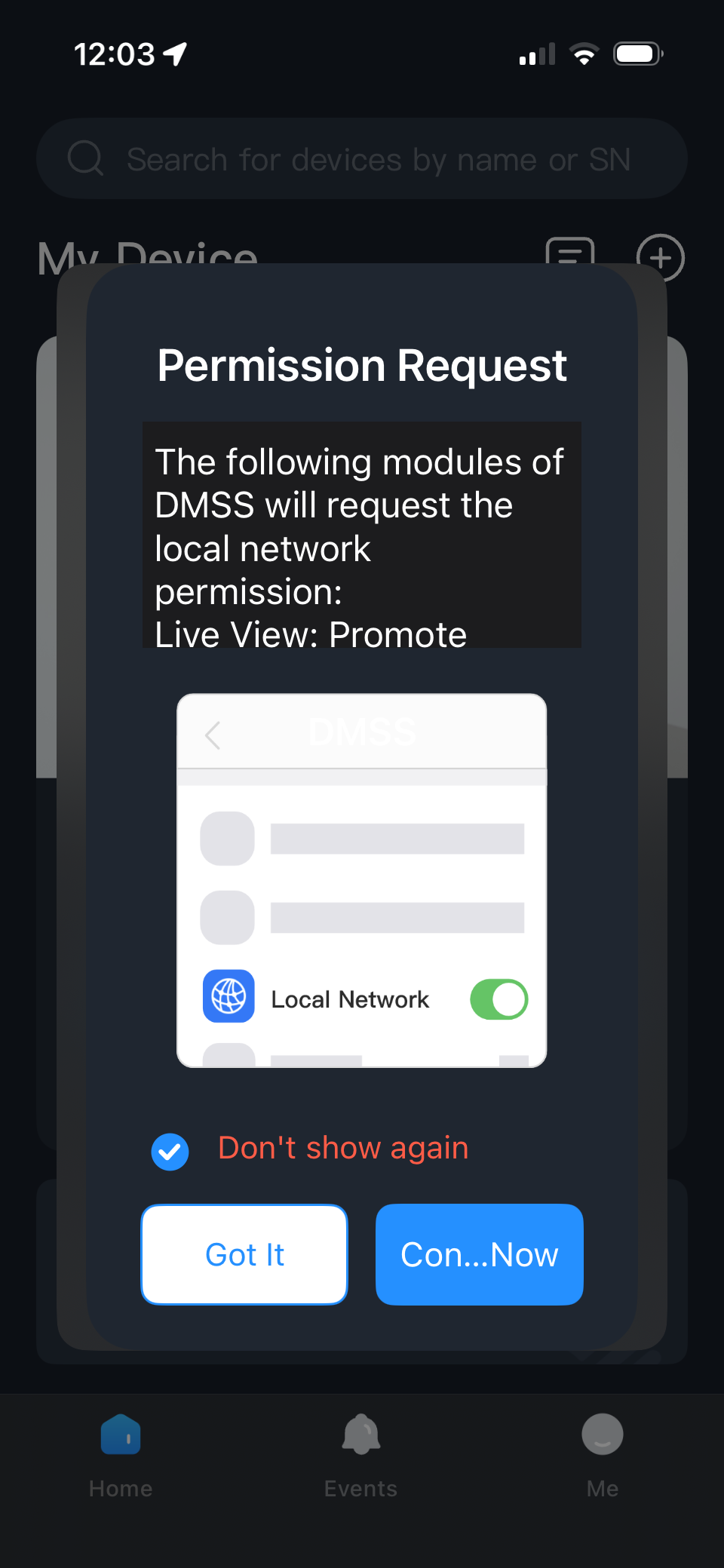
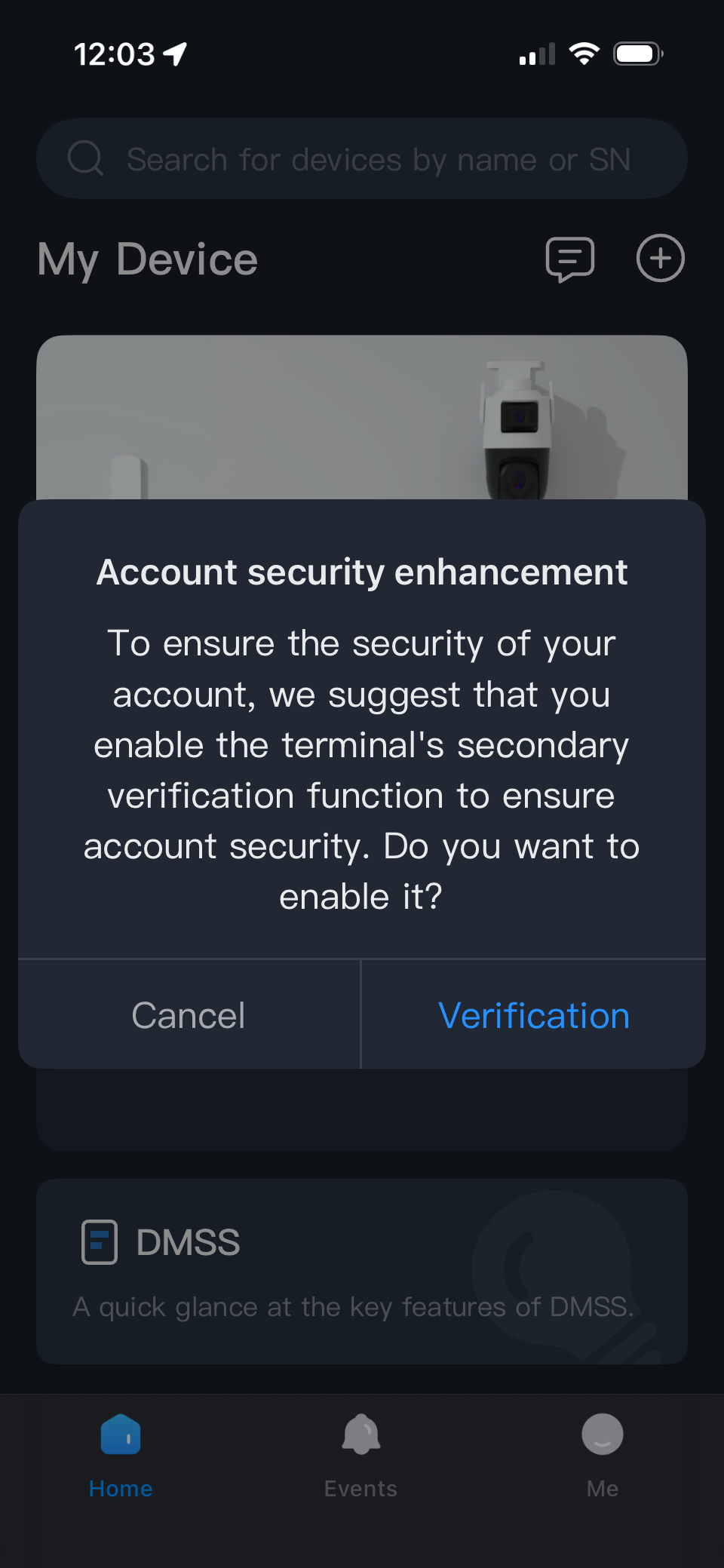
4 - You can choose to allow or not allow to find devices on local networks, not required though. Click on "Got it" after that. Click Cancel when asked about account security enhancements.
 |  |  |
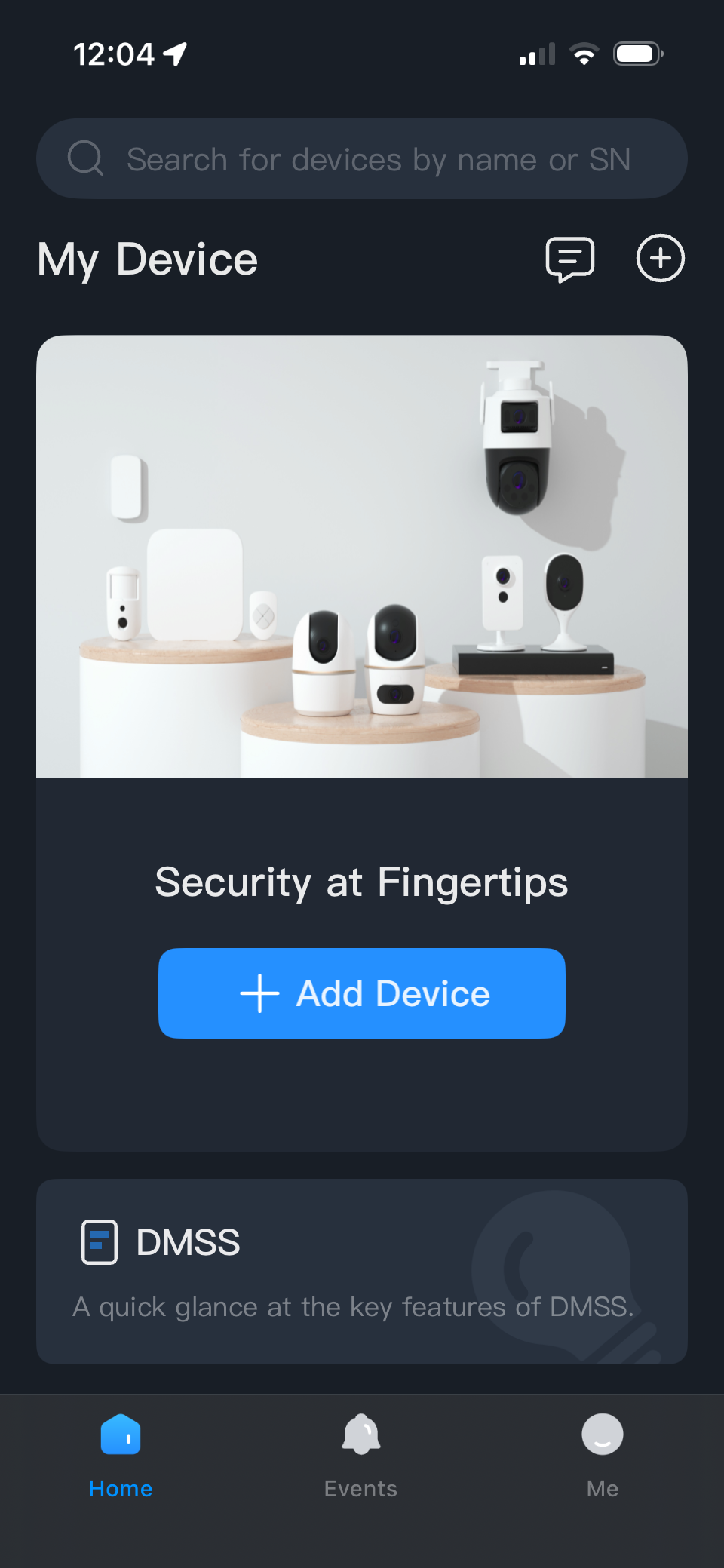
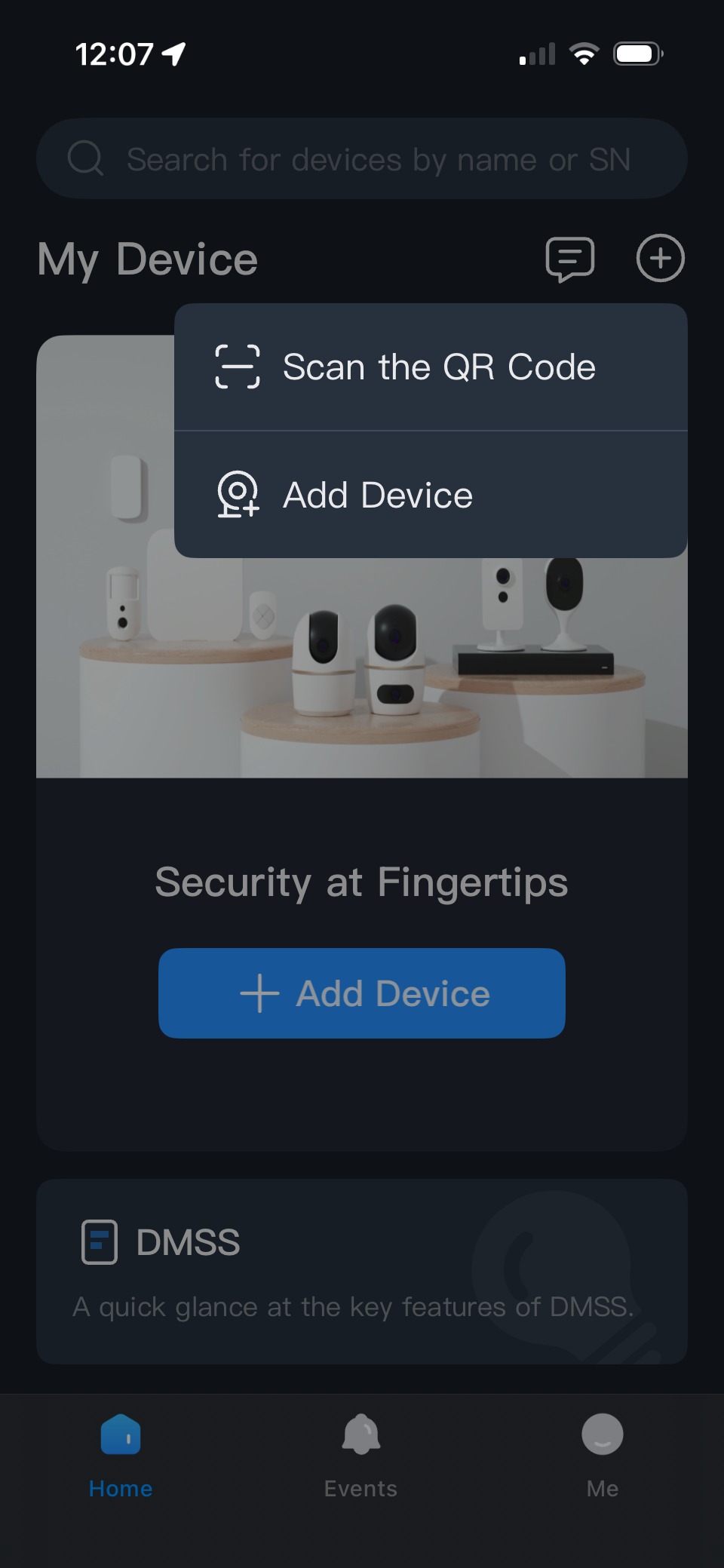
5 - On the Upper Right select the "+" symbol and then Add Device.
 |  |
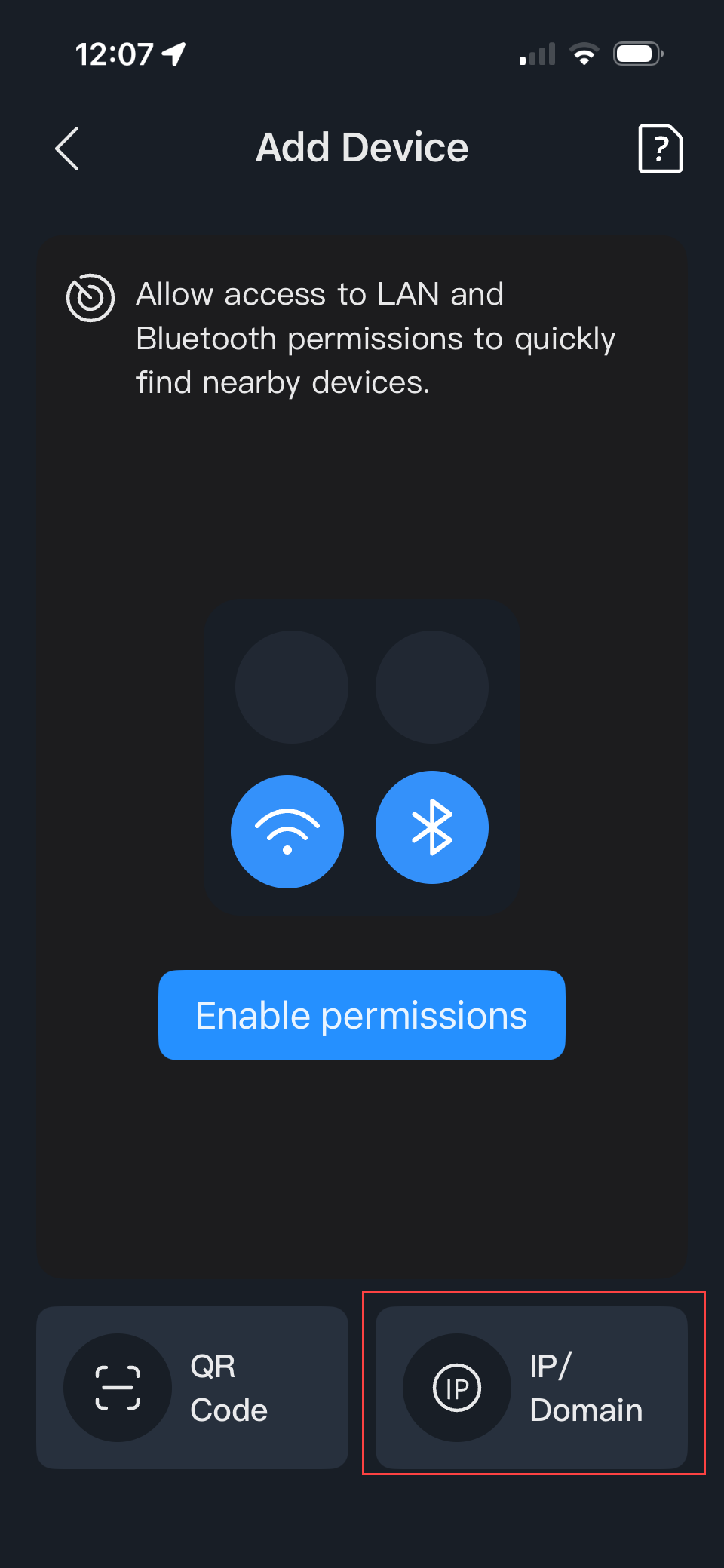
6 - Choose "IP/Domain"
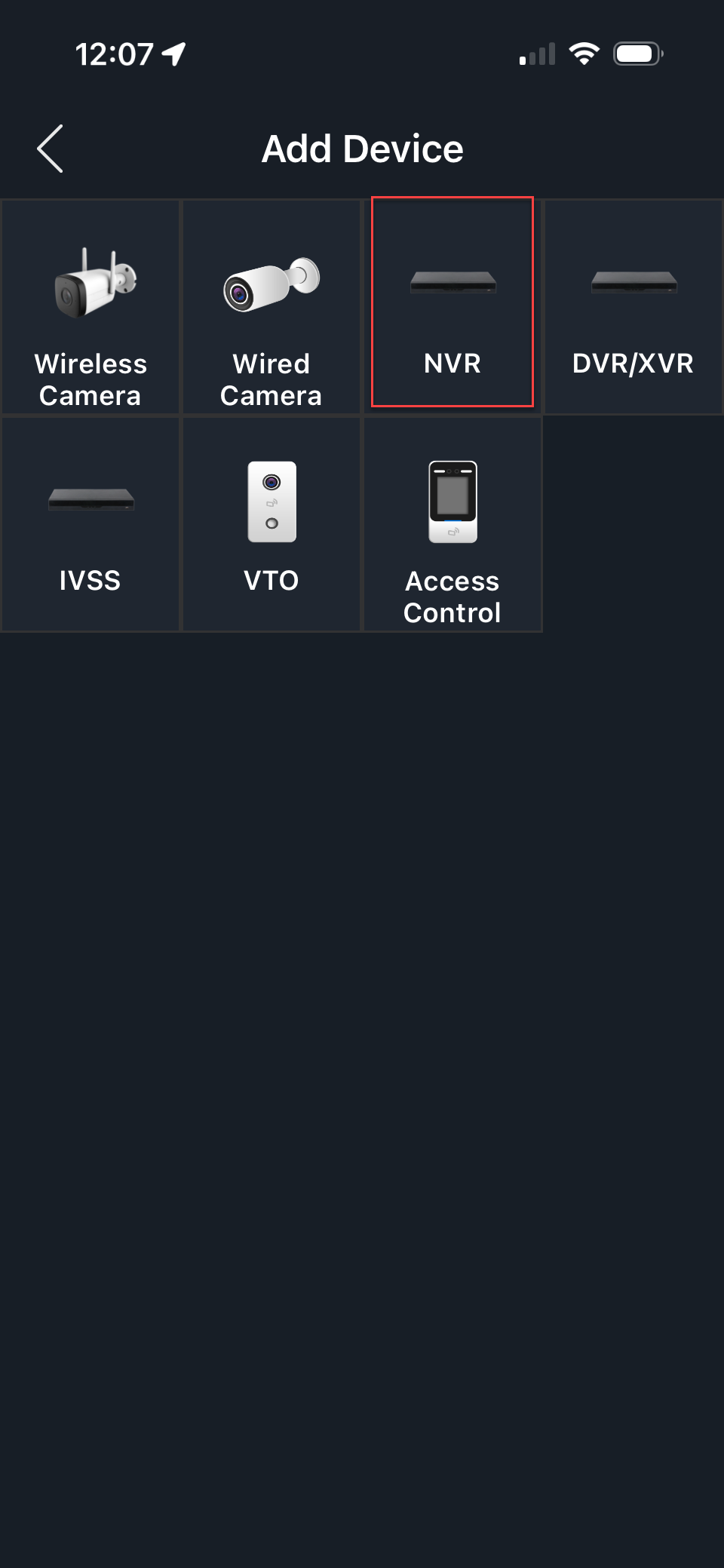
7 - Select "NVR"
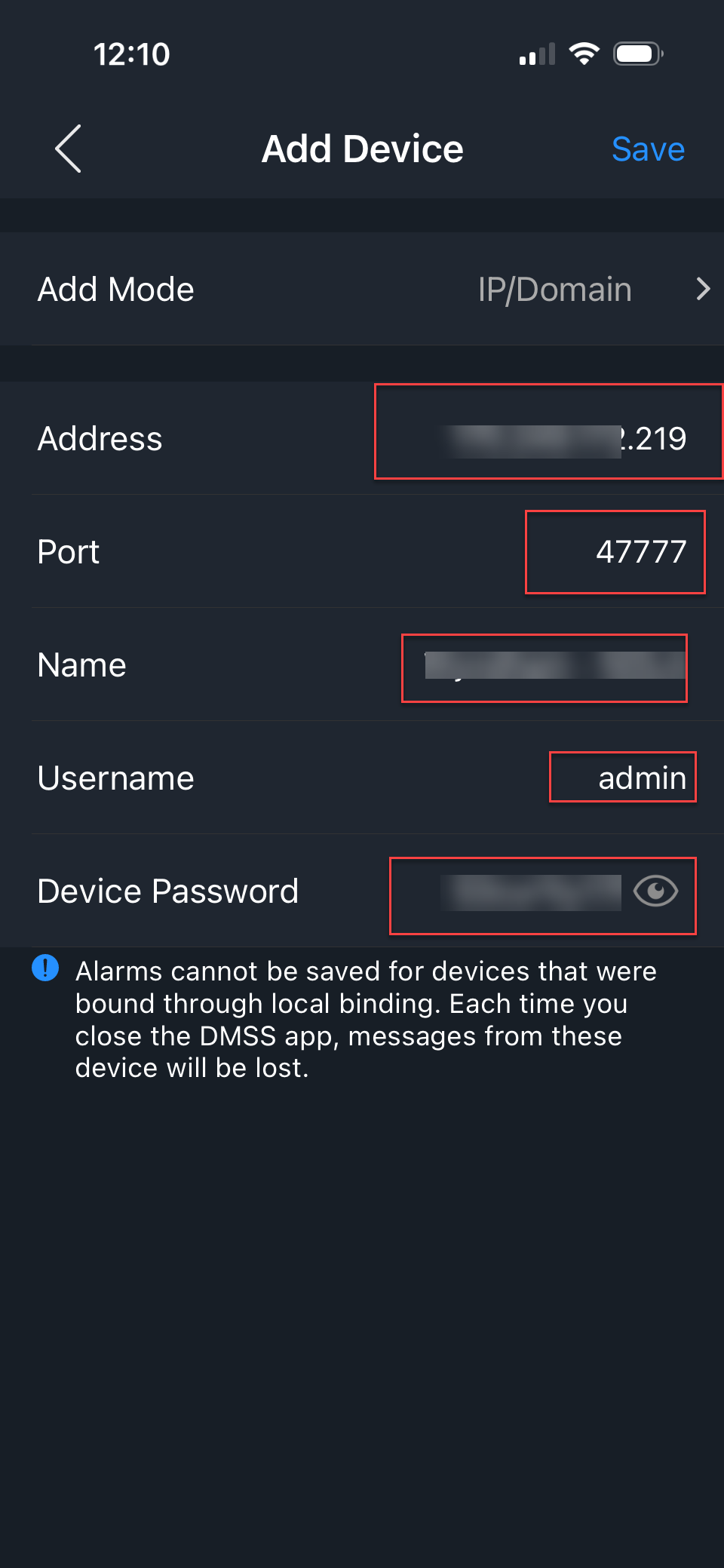
8 - Fill in the fields as shown below and select the "Save" icon on the "Upper Right"
Port: 47777
Address: Enter you public IP address or DDNS address that we sent you.
Device Name: This is ultimately your choice - Example: Work
User Name: Enter username
Password: Enter password
Email Support@jjadvantage.com if you do not have this information.
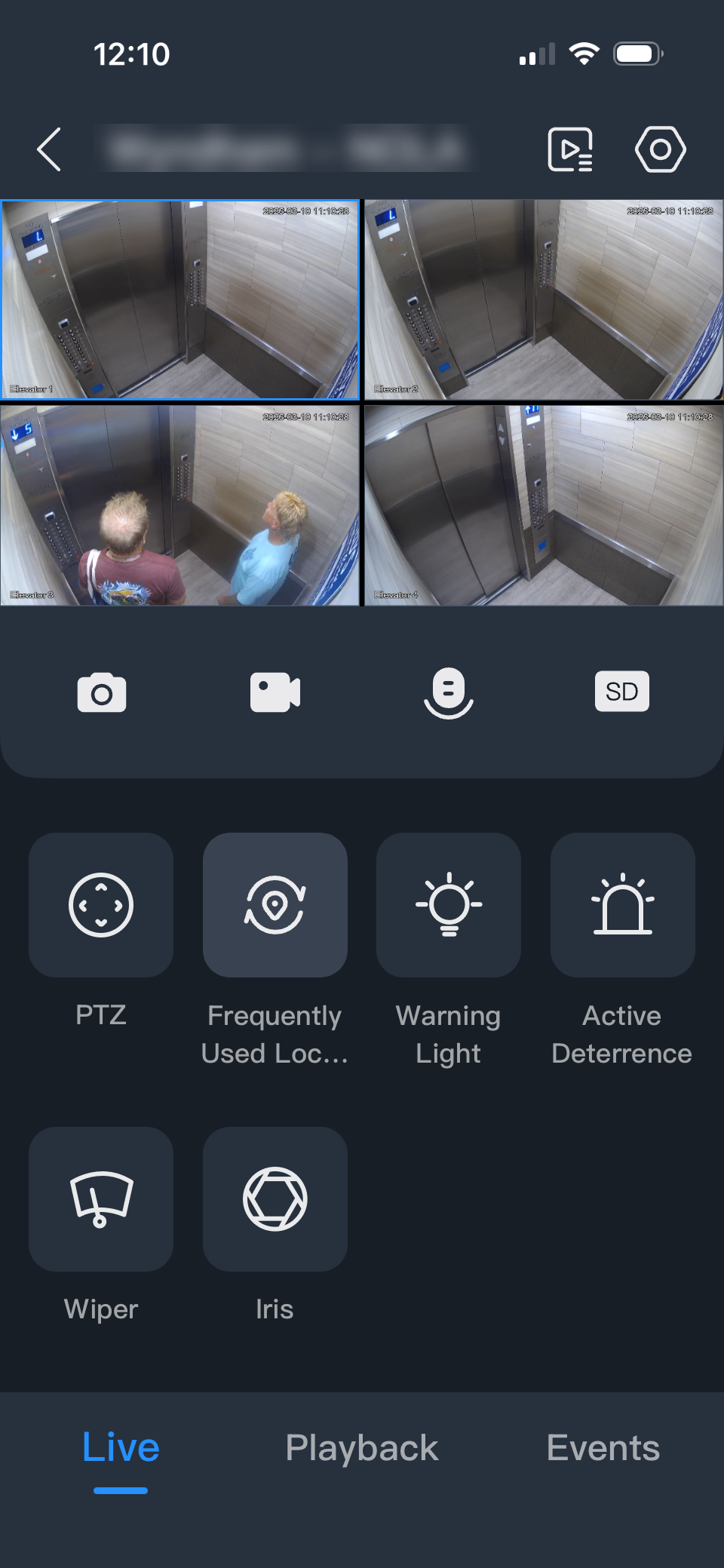
9 - If you entered the correct information, you will be able to see your cameras from your mobile device.
Was this article helpful?
That’s Great!
Thank you for your feedback
Sorry! We couldn't be helpful
Thank you for your feedback
Feedback sent
We appreciate your effort and will try to fix the article